
Customer self-service onboarding is in controlled rollout. Contact Evidize support to confirm availability for your organization before scheduling a change. Existing enabled organizations can continue to sign in.
Download the PDF setup guide1. Prepare your organization
You need an active Evidize organization administrator account and access to a Microsoft Entra tenant. A tenant is your organization’s Microsoft 365 identity directory; it is not an email address or an individual subscription.
The Microsoft administrator can be a different person from the Evidize administrator. Supported Microsoft roles are Global Administrator, Application Administrator, and Cloud Application Administrator. Activate an eligible role through Privileged Identity Management before beginning. A custom or delegated role is not supported by this first release.
Only organization administrators can configure SSO. Standard users see Microsoft 365 SSO greyed out with the message ‘Only organization administrators can configure SSO.’ They must contact their organization administrator. Evidize platform-administrator status alone does not authorize changes to a customer’s SSO.
This release supports one Microsoft tenant per Evidize organization and one Evidize organization per Microsoft tenant in each environment. Personal Microsoft accounts, automatic account creation, SCIM, and group-to-role synchronization are not supported.
- Identify at least one active Evidize organization administrator who will test their own Microsoft sign-in.
- Prepare a list of approved Evidize users, their intended Evidize roles, and their Microsoft user Object IDs.
- Keep your current working sign-in method until the administrator pilot succeeds. Arrange an owner-verified recovery contact with Evidize support before requiring SSO.
- Allow browser pop-ups for the Evidize portal. Complete Microsoft MFA whenever it is requested.
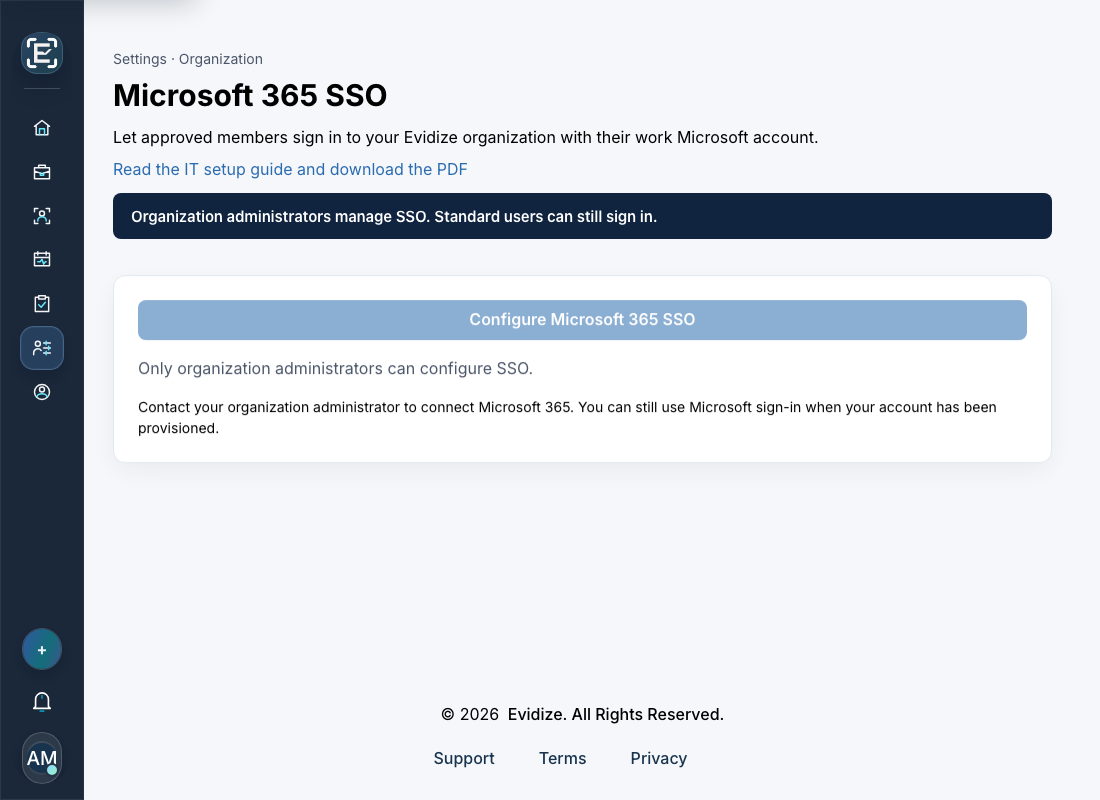 Open full-size screenshot
- 1. Configuration is disabled for standard users. Contact your Evidize organization administrator; you can still use Microsoft sign-in once your organization enables it.
2. Find the Tenant ID and user Object IDs
Sign in to the Microsoft Entra admin center and switch to the intended directory. In Entra ID → Overview, copy the Tenant ID. Labels may vary as Microsoft updates its admin center.
For each approved person, open Entra ID → Users → All users, select the user, and copy the Object ID from their Overview page. Copy the user object in the directory you are connecting. For a guest user, this is the guest object in your directory, not the object in their home directory.
Do not use an application Object ID, application/client ID, domain name, or email address in place of a user Object ID. Evidize binds the pair of Tenant ID and user Object ID. Email addresses are display and contact information; changes to Microsoft email claims do not silently rename or relink Evidize accounts.
- Check the directory name before copying any identifier.
- Record Tenant ID once for the organization.
- Check each person’s name and sign-in address before copying that person’s Object ID.
- Have another administrator review the mapping before enabling access.
3. Verify the Microsoft administrator and consent
In the Evidize portal, open Settings → Microsoft 365 SSO. You can also reach it from Organization Settings. Enter your Tenant ID and choose Verify Microsoft administrator. Sign in to Microsoft using one of the supported tenant-administrator roles.
Evidize validates Microsoft’s signed tenant and administrator-role claims. Returning to a consent URL alone is not identity verification. Setup expires after ten minutes and belongs to the Evidize administrator and portal session that started it. If that administrator is removed or demoted, restart with a current organization administrator.
Choose Review Microsoft consent. Check the application name and intended tenant, then approve identity-only access. The production app is Evidize.com Portal; local testing uses Evidize.com Portal (Development). The requested scopes are openid, profile, and email. Microsoft may also describe maintaining the sign-in session. This setup does not request mailbox, calendar, or Outlook access.
After Microsoft redirects back, leave the pop-up open long enough for Evidize to complete the return. If a pop-up is blocked, allow it and retry the relevant step. If setup expires or the original portal session changes, start again.
Consent does not create an Evidize account or assign an Evidize role. Outlook, calendar, mailbox, and platform-email integrations are configured separately.
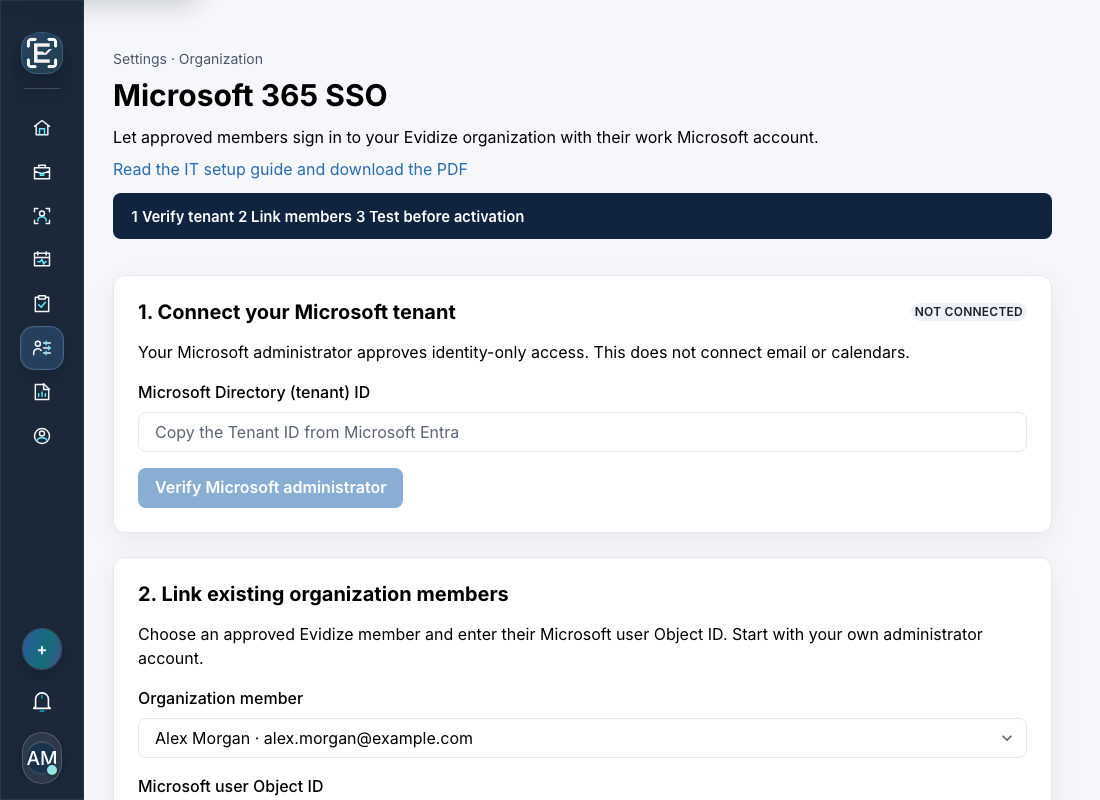 Open full-size screenshot
- 1. Paste your Microsoft Tenant ID.
- 2. Verify a supported Microsoft administrator, then review consent.
- 3. Select an existing Evidize member. Continue below to enter their Microsoft user Object ID and link the account.
4. Provision users and link Microsoft identities
Create or review approved users in Evidize Team. Assign the least privilege required: standard user or organization administrator. A Microsoft administrator role does not become an Evidize administrator role.
Choose Link Microsoft identities from Team, or use the member list on the Microsoft 365 SSO settings page. Select an existing member, enter their Microsoft user Object ID, and choose Link Microsoft identity. Start with your own Evidize organization administrator account.
Check every mapping carefully. An existing binding cannot be silently overwritten, and the same Microsoft identity cannot belong to two Evidize users. Contact Evidize support for an audited correction if an Object ID was entered incorrectly. Recreating a person in Microsoft normally creates a new Object ID and requires the same reviewed correction.
A user who has not been explicitly provisioned and linked cannot sign in, even after tenant consent. Existing account history and Evidize roles remain attached to the same user record.
- In Microsoft Entra, open Enterprise applications and select Evidize.com Portal.
- If your organization requires application assignment, set Assignment required to Yes in Properties and assign approved users through Users and groups. Follow your Microsoft licensing and tenant policies.
- Assign pilot administrators before requiring assignments. An assignment in Microsoft does not replace Evidize provisioning and binding.
- Review both lists before adding more users.
5. Pilot, activate, and optionally require SSO
Choose Test my Microsoft sign-in and authenticate with the Microsoft account linked to your own Evidize administrator. A different Microsoft consent administrator cannot perform this test on your behalf. Complete MFA or other Conditional Access requirements.
After the test succeeds, activate Microsoft SSO within fifteen minutes using the same Evidize administrator. Activating without Require Microsoft SSO keeps existing permitted password access alongside SSO. Test a fresh portal sign-in and confirm that your account, organization, and role are correct.
Pilot with an approved ordinary user as well. They should reach their usual workspace and see disabled SSO configuration. Verify that an unprovisioned Microsoft account is rejected.
When your member mappings and recovery contact are ready, run the administrator test again, select Require Microsoft SSO for everyone in this organization, and activate. This disables organization password authentication and revokes existing Evidize password sessions and outstanding password/invitation actions. Your current session ends if it used a password.
After enforcement, sign in afresh through Microsoft. Verify that password sign-in fails. Password reset and invitation links cannot override the organization’s SSO-only policy. User account activation and Microsoft binding must be managed by an organization administrator.
Do not enforce SSO while approved members remain unlinked unless you deliberately intend to block those accounts. Evidize does not automatically create or bind users.
- Confirm your administrator can sign in with Microsoft in a fresh browser session.
- Confirm an approved standard user can sign in and cannot configure SSO.
- Confirm the intended users are assigned in Microsoft if assignment is required.
- Confirm the owner-verified support recovery route.
- Require SSO, then verify fresh SSO and rejected password access.
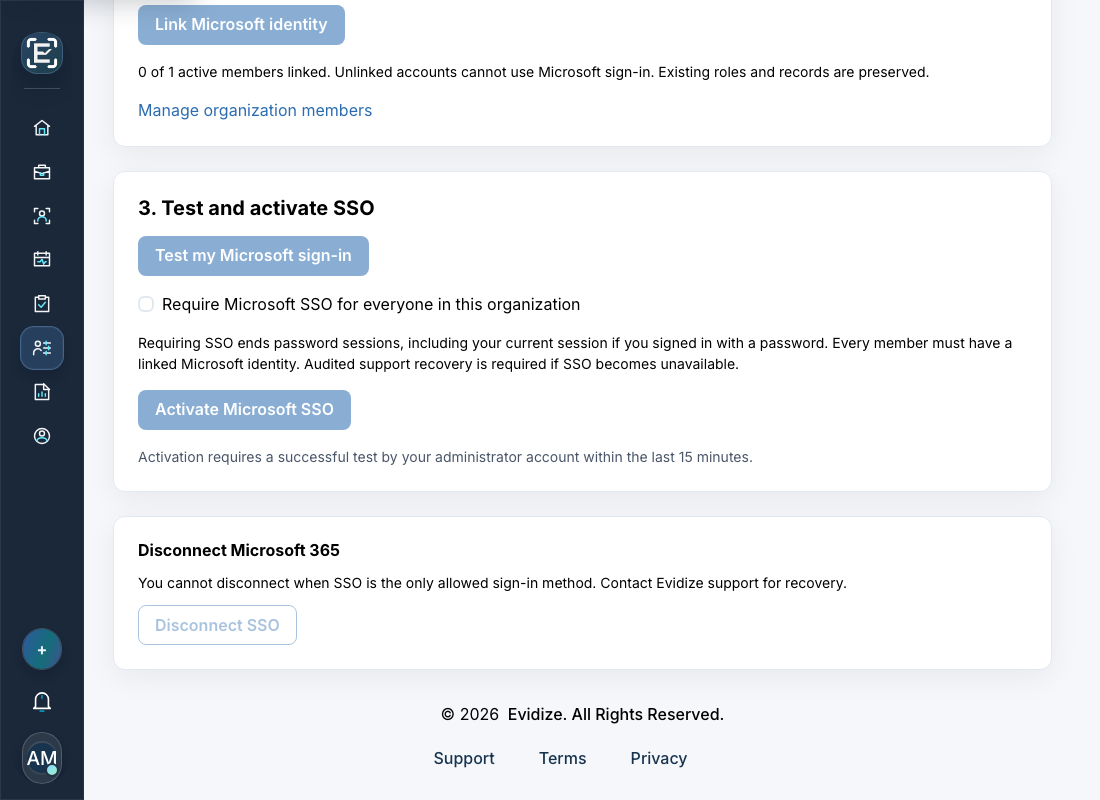 Open full-size screenshot
- 1. Test the Microsoft account linked to your own Evidize administrator.
- 2. Leave this unchecked during the pilot. Require SSO only after user mappings and recovery are ready.
- 3. Activate after a successful test. The disabled button shown here is expected before test evidence exists.
6. MFA, offboarding, and session limits
Manage MFA and Conditional Access for the Evidize Enterprise Application in Microsoft Entra. Evidize uses Microsoft authentication; it does not configure your tenant’s MFA policy. Test policy changes with pilot users before widening them.
For offboarding, deactivate the user in Evidize and remove or disable their Microsoft access. Evidize checks account, organization, connection, and identity-binding validity during protected requests and session refresh. Disabling or disconnecting the connection invalidates affected Evidize access.
Microsoft and Evidize have separate session lifetimes. Revoking Microsoft sessions or changing Conditional Access does not necessarily end an already-issued Evidize application session immediately. To stop Evidize access, deactivate the person in Evidize as well. A request already in progress may complete before revocation takes effect.
A tenant-wide outage or SSO failure never automatically restores password access. Disconnect is blocked when SSO is the only permitted authentication method. In a mixed-authentication organization, disconnect requires a working local password account for the acting administrator and ends affected Evidize sessions.
7. Troubleshooting and recovery
Only organization administrators can configure SSO: ask an active Evidize organization administrator to perform setup. Microsoft or Evidize platform roles alone are insufficient.
Microsoft administrator role not recognized: check the tenant, activate the supported directory role, and sign in again. Ask support to verify application role-claim configuration if the correct role is still rejected.
Account not provisioned: confirm the person already exists and is active in Evidize, then compare both Tenant ID and user Object ID. Matching email addresses are insufficient.
Wrong tenant, assignment required, or access blocked: switch to the connected directory and check Enterprise Application assignments, account status, MFA, and Conditional Access. Use Microsoft sign-in logs to inspect the failure.
Expired or already-used request, or nonce mismatch: restart the action from Evidize in the original browser. Do not reuse a consent link or sign-in proof, and do not switch portal sessions midway through setup.
Tenant or binding conflict: one tenant can connect to one organization per environment. Do not create a duplicate user to work around the conflict; ask support to investigate the existing mapping.
Unable to disconnect or restore passwords: contact Evidize support. Recovery requires verification of organization ownership, a reviewed access change, and an audit record. No automatic fallback is available.
When contacting support, include your organization name, the environment, approximate failure time with timezone, the step, and any displayed error or Microsoft correlation ID. Never send passwords, tokens, browser cookies, or client secrets.